A box that resizes with one number
A drawing that holds its own dimensions is what RapidCAM is for, and the Parametric Box is the smallest example that shows it. It is three panels of a flat-pack box, joined with screws or glue, whose sizes all come from a few named numbers. This guide changes the numbers and watches the box, and the toolpath, follow.
Open RapidCAMNothing to install, no account.
Open the example
On RapidCAM’s start screen, or in the File menu under Examples, choose Parametric Box Panels.
Three panels with their sizes on the drawing, and the four numbers that drive them in the Variables panel. The status bar at the bottom says Fully constrained: nothing in the drawing can drift, so the only way it changes is through a number.
Change one number
In the Variables panel on the right, click the value beside
boxW, type220and press Enter. BASE and SIDE both grow to 220 mm, together. END stays 102 mm: it sits between the sides, so it follows the depth and the thickness, not the width.boxW = 220. Both wide panels follow; END does not. boxDis the depth andboxHthe height.cornerRis the corner radius, and it rounds every corner of every panel at once: set it to0and all of them go square. It is wired in rather than drawn as a dimension, which is why you will not find a label for it on the canvas.Change the plywood
Open the Toolpaths tab, press the › beside Project Settings to open it, and under Material change Stock thickness from 9 to 12. The END panel narrows from 102 to 96 mm: its width is the depth minus two thicknesses (
boxD - 2 * stock), because it sits between the two sides.Stock thickness 12: END is 96 mm. Nothing was edited by hand. The cut follows too. The toolpath card now reads −12.50: the thickness plus half a millimetre into the spoilboard, so the panels come free.
The Cut panels toolpath, now cutting to −12.50. On a design of your own, press ⊥ stock in the toolpath’s Cut section. It ties the depth to the material thickness (the field reads
-stock), so changing the plywood cannot leave the cut stopping short. If it does stop short, the pre-flight check says so before the program leaves.Generate the G-code
Press Generate G-code. The Export preview shows the path and an estimated time and checks the program; at 12 mm it has nothing to report. The time is an estimate, and an optimistic one, because it assumes the machine always moves at full speed (Machine Settings can take your machine’s speeds for a closer figure). Export saves the
.ncfile.The panels are cut out with small tabs, bridges that hold each panel in the sheet until you cut it free. Trim them flush afterwards.
The example holds one of each panel. A box needs a base, two sides and two ends, so plan to cut the SIDE and END panels twice.
Before the first real cut, set your controller in Settings and check the tool-changer box, as in From an SVG to G-code.
Why butt joints, not fingers
The panels meet face to edge and are held with screws or glue. Fingers would look better, but the number of fingers changes how many corners the outline has, and no dimension can change that, so a finger-jointed box cannot be one file that resizes. For the shape of a finger joint, the Box-Joint Tab & Slot Panel example is a ready-made panel; its finger count is fixed in the file.
Make it yours
Click + Add variable, name it and give it a value. Then double-click any dimension on the drawing and type an expression that uses the name, such as
lip + 20: the dimension now follows the variable. Save the project, and the numbers go with it, so you can open the file next month and change the plywood again.
Checked against RapidCAM on 2026-10-05. If something here no longer matches what you see, the app has changed and this guide is behind: please tell us.
Keep going
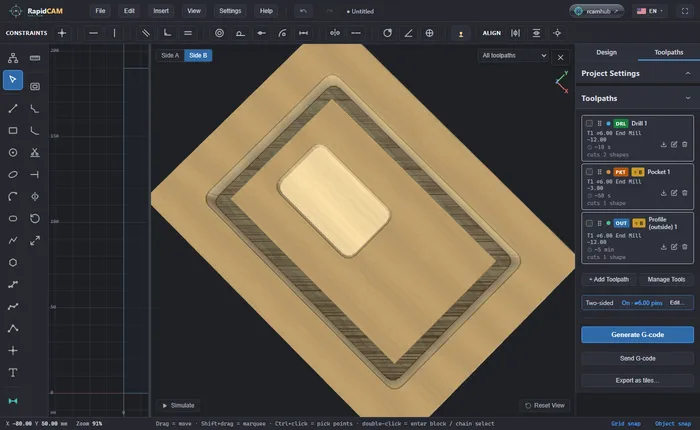
Cut both sides of a part with a flip
Machine a part on both faces: set up the flip and its registration pins, give each toolpath a face, preview side A and side B, and cut with one program per side. Keep the pins out of the part.
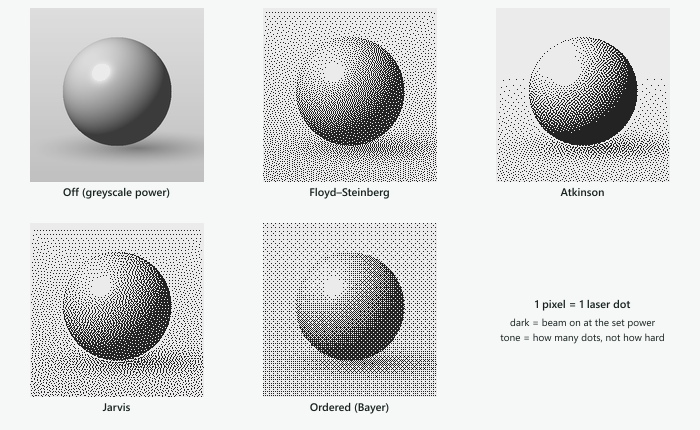
Engrave a photo with a laser
Drop a picture into RapidCAM, tune it, and engrave it with a laser as dots using Floyd–Steinberg, Atkinson, Jarvis or ordered dithering, then export G-code. In your browser, nothing to install.