From an SVG to G-code
You have a drawing as an SVG (a logo, a bracket, a template from Inkscape, Illustrator or Affinity) and a CNC router. This takes it from the file to a program you can run, in RapidCAM, in your browser. The example is a plate with two holes. Yours will be different; the steps are the same.
Open RapidCAMNothing to install, no account.
Open RapidCAM and describe your material
Choose New Project. Under Stock, set the width, height and thickness of the piece you will actually cut. Leave the origin where it is: the front-left corner, top of the material. On the machine you will set zero to that corner.
Drop the SVG on the window
Drag the file onto RapidCAM, or use File ▸ Import SVG. It lands in the middle of your material, selected, as one group.
The plate lands in the middle of the stock, selected as one group. If the file does not say how big it is, RapidCAM asks How big is this SVG? and offers millimetres (1 unit = 1 mm) or pixels (96 dpi), with the size each choice gives. Pick the one that makes the drawing the size you meant, and check it with the Measure tool: a wrong scale is the commonest way to cut a part the wrong size. Anything RapidCAM could not read exactly, such as a rectangle’s rounded corners, is listed in a message at the bottom.
Cut the holes first
An import stays together as a group so it moves as one. To pick the holes and the outline separately, press Ungroup in the Properties panel on the right. Click one hole, Shift-click the other, open the Toolpaths tab and press + Add Toolpath. The dialog opens with just those two holes in it.
Set Type to Profile (inside): it cuts on the inside of the line, so a hole keeps its size. Press ⊥ stock to cut all the way through (it sets the depth to the thickness of your material), then Apply.
Profile (inside) for the two holes. ⊥ stock puts the stock thickness in Depth. The Tool line shows the cutter the toolpath will use (a 6 mm end mill to start). Press Manage Tools to set yours: the cutter’s diameter decides where the path runs, so a wrong diameter gives a wrong-size hole.
Then cut the outline
Click the outline and press + Add Toolpath again. Leave Type on Profile (outside), which cuts on the outside of the line so the part keeps the size you drew. Press ⊥ stock again and Apply.
Holes first and outline last, so the part is still attached to the board while the holes are cut. Toolpaths run in the order of the list; drag a toolpath’s handle to reorder. If the part is cut right through and might shift, turn on Enable tabs in the dialog to leave small bridges that hold it.
Look before you cut
Press 3D at the top right of the drawing to see the material with both toolpaths cut into it. Simulate plays the cut in the order your machine will do it.
The 3D preview shows the stock with both toolpaths cut. Generate the G-code
Press Generate G-code. The Export preview shows the path (solid lines cut, dashed lines are rapid moves) and an estimated time, and checks the program before it leaves, listing anything it is worried about in plain words. Press Export to save the
.ncfile.A clean pre-flight: nothing to report, so the button is a plain Export. The time is an estimate, and an optimistic one: it assumes the machine always moves at full speed. Enter your machine’s speeds in Machine Settings for a closer figure.
Why the check is worth having. Ask for an outside profile on all three shapes at once and the check refuses it: the cutter would run beside the holes, which is through the plate. The program would post cleanly and the preview would look fine.
Tell RapidCAM about your machine, once
Press Settings in the top bar to open Machine Settings. Choose the post-processor for your controller (GRBL / FluidNC, or LinuxCNC; the starting choice is LinuxCNC). If your machine has no automatic tool changer, untick Automatic tool changer (emit T/M6). It is on until you save this dialog, and a plain GRBL controller does not understand M6: it stops on that line with
error:20.Run it
Open the file in your sender, or press Send G-code to pass it to a running gSender or ncSender. Before the first real cut, set zero at the front-left corner of the top of the material, then run the program once with the spindle off and the tool raised well above the work, watching where it goes.
Checked against RapidCAM on 2026-10-05. If something here no longer matches what you see, the app has changed and this guide is behind: please tell us.
Keep going
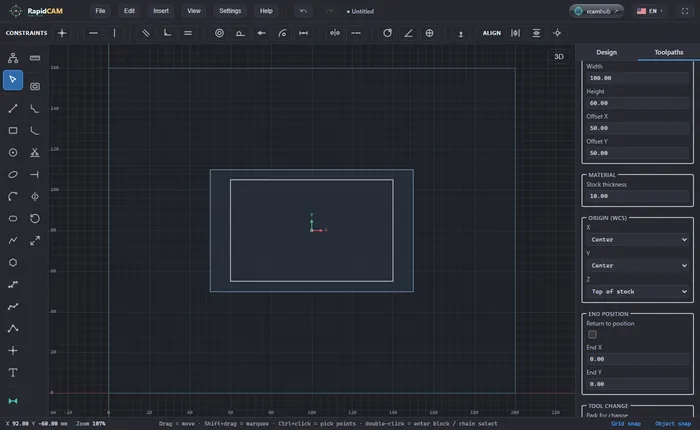
Set your zero: where your machine starts counting
Tell RapidCAM where your machine's zero is (a corner or the centre, the top of the stock or the bed), see what each choice does to the G-code, and set the same zero on your machine.
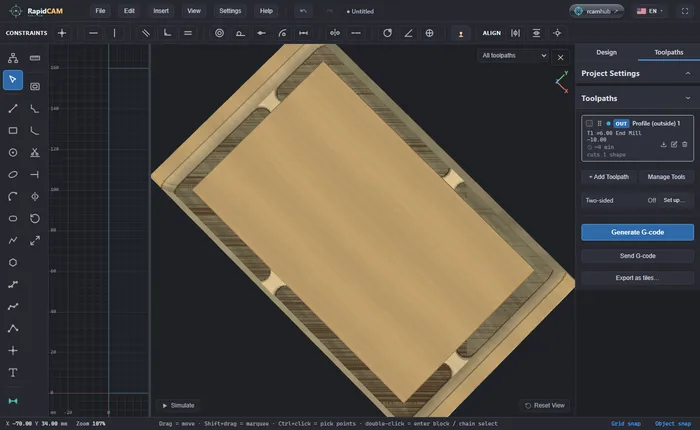
Hold the part down with tabs
Cut a part out of the sheet without it coming loose on the last pass: turn on tabs in an outside profile, see what each tab really leaves, and what RapidCAM says if they are too narrow.