Set your zero: where your machine starts counting
Every number in a G-code program is measured from a point called zero, and the machine has no idea where on your material that is until you show it. Get this wrong and the program is perfectly good and the cut lands in the wrong place, or too deep. RapidCAM asks you to say where your zero is, so what it writes matches what you do at the machine. This guide covers both halves.
Open RapidCAMNothing to install, no account.
Pick a spot you can find with the machine
Zero is a position in three directions, and you will have to put the cutter on it by hand, so choose one you can find. Across and along, that is a corner of the material or its centre. Up and down, it is the top surface of the material or the bed it sits on.
RapidCAM’s default is the front-left corner, at the top of the stock: the corner nearest you, at the surface. A round or symmetrical part is easier from the centre. Choose Bed for the height if you would rather measure up from the table, for example from a spoilboard you have zeroed on.
Tell RapidCAM where it is
In New Project, the Origin (WCS - Work Coordinate System) section has three pickers: X (Left, Center, Right), Y (Front, Center, Back) and Z (Top of stock, Bed). The little block beside them shows where that puts the origin. WCS is the usual name for it: the physical 0, 0, 0 of your job.
New Project: the Origin section, set to the default (left, front, top of stock). The red and green axes drawn on the stock are your zero, so you can see it before you export anything. Here it is on the stock’s front-left corner, with the 80 × 50 mm plate used in the rest of this guide drawn inside it.
The axes sit on the stock's front-left corner: that is where RapidCAM thinks your zero is. Already have a project? Open the Toolpaths tab and press the › beside Project Settings. The same Origin (WCS) pickers are there, and the axes jump as you change them.
Origin set to Center and Center: the axes move to the middle of the stock. See what it changes
Here is one drawing, an 80 × 50 mm plate centred on a 100 × 60 × 10 mm blank, cut with an outside profile, exported three times with only the origin changed. The cutter runs 3 mm outside the plate, which is why the cuts start at X 7 and not X 10.
Origin (X / Y / Z) Cutting X Cutting Y Cutting Z Left / Front / Top of stock 7 to 93 2 to 58 0 down to -10 Center / Center / Top of stock -43 to 43 -28 to 28 0 down to -10 Left / Front / Bed 7 to 93 2 to 58 10 down to 0 The part did not move. Only the numbers that describe it did. From the centre, the plate’s edges are at ±40 and ±25 and the cut runs 3 mm beyond them. With Bed, every height is measured up from the table, so the top of the material is at Z 10 and the cut finishes at Z 0. That is why the stock thickness has to be the real thickness: with Bed it sets where the surface is.
The program records the choice in its own header, which is worth a glance before every job:
; WCS origin X: Left  Y: Front  Z: Top of stock
; Stock: 100 x 60 x 10mm
With Bed it reads
Z: Bed (top at Z=10mm).Set the same zero on the machine
RapidCAM cannot see your machine, so this half is yours, and it must match step 2. In your sender (the program that streams G-code to the controller), jog the cutter to the spot you chose and set X and Y to zero there. Then set Z: bring the cutter down to the top of the material and zero Z, or, if you chose Bed, touch off on the bed instead. Senders usually have a zero button for each axis. On a GRBL controller you can also type
G10 L20 P1 X0 Y0 Z0, which makes wherever the cutter is now the zero of work offset 1.One detail: RapidCAM’s program does not choose a work offset (it has no
G54line), so it runs in whichever one your controller has selected. On GRBL that is G54 unless you have changed it, so zero in that one.Before you run it: compare the header’s
WCS originline with what you just did at the machine. If they differ, stop. Then run the program once with the cutter well above the material, watch it trace the outline where you expect, and only then lower Z and cut. Wear eye protection and stay with the machine while it runs.
Open RapidCAMNext: from an SVG to G-code
Checked against RapidCAM on 2026-10-05. If something here no longer matches what you see, the app has changed and this guide is behind: please tell us.
Keep going
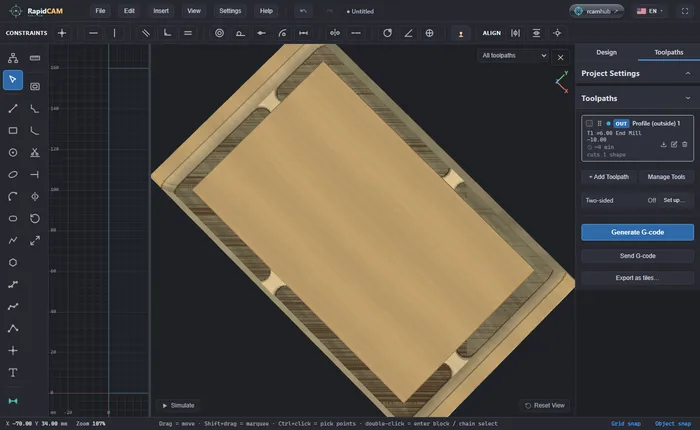
Hold the part down with tabs
Cut a part out of the sheet without it coming loose on the last pass: turn on tabs in an outside profile, see what each tab really leaves, and what RapidCAM says if they are too narrow.
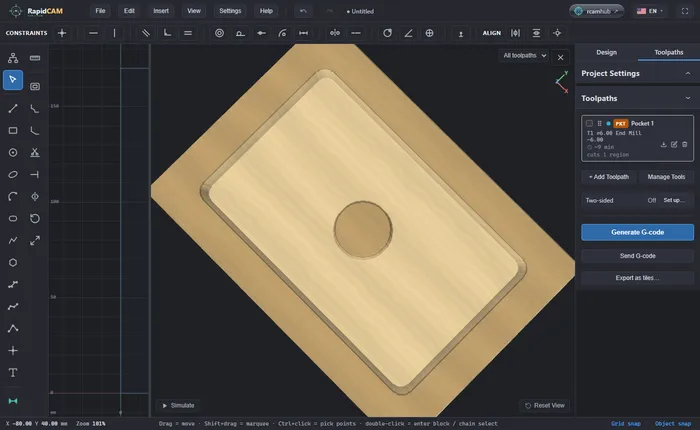
Cut a pocket from a DXF
Bring a DXF into RapidCAM, answer the units question, pocket a closed shape, and leave a boss standing in the middle the right way, then see what the cutter does if you pick it the wrong way.