V-carve a sign
A V-carved sign is the look most people want from a CNC router: letters with sloping walls that come to a point in the middle of every stroke. A flat end mill cannot make it, because its groove is the same width all the way down. A V-bit can, if the toolpath varies the depth with the width of the letter, which is what RapidCAM’s V-Carve does. This guide makes one from a word.
Open RapidCAMNothing to install, no account.
Describe the board
Choose New Project. Under Stock, set the width, height and thickness of the board you will carve. The example here is 300 mm by 120 mm and 18 mm thick. Leave the origin where it is: the front-left corner, top of the material.
Type the word
Pick the Text tool in the toolbar on the left, then click where the text should go. The status bar tells you what happens next: “Click where to place the text, then type it and set the font in the dialog”.
In Place Text, type the words. Set Align to Centre, so the place you clicked is the middle of the text, and pick a bold Font: wider strokes give a deeper, easier-to-read carve. Set Height (mm) to the height of the letters (45 here) and press Place. You can load your own font from the same dialog (Load font, or Add a font from the web).
The Place Text dialog: the words, centre alignment, a bold font, 45 mm tall. Check the text sits inside the lighter stock rectangle. If it runs off the board, lower the height: the text here is 245 mm wide on a 300 mm board.
Add the V-carve toolpath
With the text selected, open the Toolpaths tab and press + Add Toolpath. Set Type to V-Carve (text/shape). The dialog describes it: it carves a shape with a V-bit so the groove widens where the shape is wide and comes to a point where it narrows. The text is already in the Geometry list.
V-Carve with the text picked. The Tool line reads V-Bit, ⌀6.00 mm, 60°. RapidCAM switches the cutter to a V-bit for you. Make it yours: open the Tool section and set Diameter (mm) and V Angle (°) to your bit’s numbers (60° and 90° are common), and check the spindle speed and feed against what your bit and board want.
Flat depth is the one number to think about. It is the floor, not the cut depth: the carve deepens by itself until it reaches that depth, and anything wider than the bit can carve at that depth bottoms out flat there instead of running deeper. Set it to
0for no floor, so every stroke runs to its own natural point. Press Apply.Look before you cut
Press 3D at the top right of the drawing. The letters appear carved into the board, with sloping walls that meet in a point. The card in the Toolpaths list reads V-Bit(60°) and shows the flat depth, and an estimated time (about 13 minutes here, an optimistic figure that assumes the machine always moves at full speed).
The 3D preview: sloping walls meeting in a point, the sign-lettering look. Generate the G-code and carve a test
Press Generate G-code. The Export preview shows the path and checks the program before it leaves; Export saves the
.ncfile. Set your controller once in Settings first, and check the tool-changer box, as in From an SVG to G-code.A V-bit is a fine point, so carve a short test on scrap of the same thickness before the real board: set zero on the top of the material, and look at the depth and the width of the grooves before you commit the board.
The whole sign
For a finished sign with a chamfered edge and the board cut to shape, open the V-Carve Sign example from the File menu under Examples. It carves the lettering with a 60° V-bit, bevels the edge with the same bit, and cuts the board out with tabs.
Checked against RapidCAM on 2026-10-05. If something here no longer matches what you see, the app has changed and this guide is behind: please tell us.
Keep going
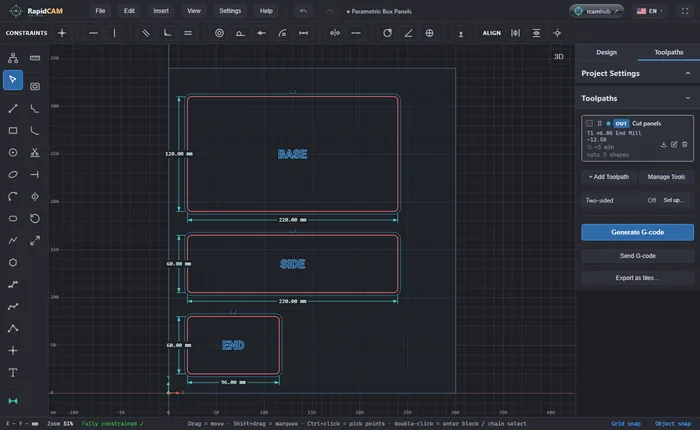
A box that resizes with one number
Open RapidCAM's Parametric Box, change one number to resize the whole box, change the plywood thickness and watch the panel and the cut depth follow, then export G-code.
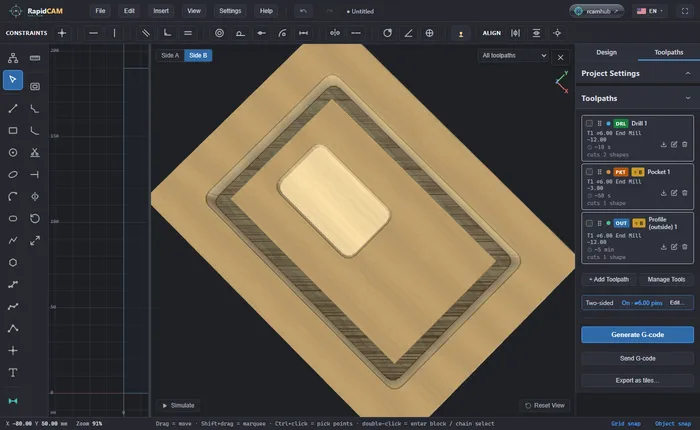
Cut both sides of a part with a flip
Machine a part on both faces: set up the flip and its registration pins, give each toolpath a face, preview side A and side B, and cut with one program per side. Keep the pins out of the part.