Drill a ring of holes
A bolt circle, a ring of screw holes, a dial: the same hole repeated round a centre. In RapidCAM you draw one, repeat it with a Circular Pattern, and drill all of them at once. There are two places this goes wrong without a sound, and this guide walks both: the pattern’s centre, and what size the hole actually is.
Open RapidCAMNothing to install, no account.
Draw one hole and put it where the ring starts
Start a New Project for your blank (here 100 × 100 mm, 12 mm thick). Press C for the circle tool, click anywhere for the centre, and type 6, then Enter: the status bar says Click a point on the circle, or type a diameter, and a typed number is the diameter.
Select the circle. The Properties panel shows Radius, Cx and Cy. Set Cx to 50 and Cy to 80. These are measured from the blank’s corner, the same numbers the status bar shows as you move, so the circle is 30 mm above the middle of the blank (which is 50, 50).
One hole, 30 mm above the blank's middle: Cx 50, Cy 80. Repeat it round the middle
With the circle selected, right-click it and choose Circular Pattern…. The dialog has a Count (6), a Centre X and Centre Y, and a Total angle (360 for a full ring).
Look at the centre before pressing Create. It opens set to the middle of whatever you selected, and for a single circle that is the circle’s own centre, so every copy would land on top of it: six holes drawn as one, and a drill plunging the same hole six times. RapidCAM refuses it and says so:
Create with the default centre is refused, and the dialog stays open. Type the ring’s centre instead: Centre X 50 and Centre Y 50, the middle of the blank. The other five copies appear as dashed circles while you type, so you can see the ring before you commit.
Centre 50, 50: the dashed circles are the copies. Press Create. Press Create. You now have six circles on a 30 mm ring, at (50, 80), (75.98, 65), (75.98, 35), (50, 20), (24.02, 35) and (24.02, 65).
Drill them
Select all six (Ctrl+A), open the Toolpaths tab and press + Add Toolpath. Set Type to Drill: it plunges a hole at the centre of each selected circle, and can peck to clear chips.
A new toolpath’s Depth starts at 3 mm. Press ⊥ stock to make it the full thickness (the field reads
-stock), which here is straight through. Peck depth is 0, which drills each hole in one plunge. For a deep hole, set it: at 4 mm the cutter goes in 4 mm, lifts fully out to clear the chips, comes back down and goes another 4 mm, until the hole is through.Drill: six circles, through the blank, pecking every 4 mm. Follow pattern (cut all copies) is ticked by default. It means you could have picked only the original circle and still drilled all six, and picking all six here gives exactly the same program: six holes, none doubled. The toolpath card says so: follows pattern · cuts 6.
The hole is as wide as the tool, not the circle
Drill puts a hole at the centre of each circle, and the hole is as wide as the tool. The circle only says where. Here the circles are 6 mm and the tool is the default 6 mm end mill, so they agree. Draw a 10 mm circle and drill it with that tool and the program is a single plunge at the centre: a 6 mm hole, not the 10 mm you drew.
Two ways to get the size you drew. Use a tool as wide as the circle, or, for a hole bigger than your tool, cut it with Profile (inside) instead: it runs the cutter round the inside of the circle, and for the 10 mm circle and 6 mm tool the cutter’s centre travels on a 2 mm radius, so the hole comes out the full 10 mm.
Look at it, then export
Press 3D and drag in the view to tilt it until you are looking down on the blank. Six holes, evenly spaced.
Six holes on a 30 mm ring. Press Generate G-code. With the 4 mm peck the job is about half a minute. The program has six hole positions, each going to Z -12. Set your zero before you run it (Set your zero).
Before you run it: put a sacrificial board under the blank, because these holes go all the way through it, check the depth against your real thickness, and stay with the machine while it cuts.
Open RapidCAMNext: cut a pocket from a DXF
Checked against RapidCAM on 2026-10-05. If something here no longer matches what you see, the app has changed and this guide is behind: please tell us.
Keep going
V-carve a sign
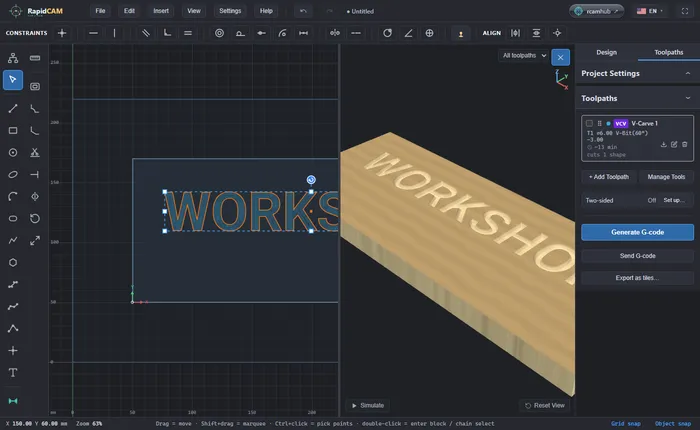
Type a word, V-carve it with a 60° V-bit so the letters have sloping walls that meet in a point, preview it in 3D and export G-code. In your browser, nothing to install.
A box that resizes with one number
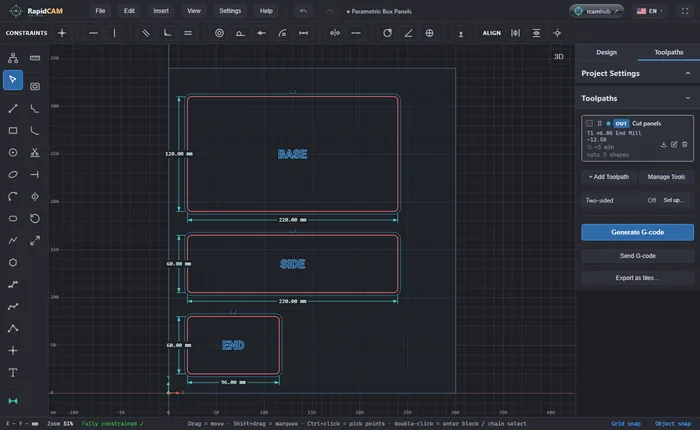
Open RapidCAM's Parametric Box, change one number to resize the whole box, change the plywood thickness and watch the panel and the cut depth follow, then export G-code.